
Converting Blogspot / Blogger to hosted WordPress
Posted on April 16, 2012
First Try
Migrating your Blogspot or Blogger weblog to a hosted WordPress installation should be easy. But you may run into some problems along the way, so here are some quick ways to make it less painful.
When I first attempted this, I used the Blogger Importer plugin found in the “Tools” → “Import” menu of a new WordPress installation. It went OK. The importer pulled in all of the posts and the comments, but there seemed to be some extra markup that made it’s way into the posts. All of the post titles now started with “>”:
>Why Hello There!
Also, while images in the content seemed to be fine, none of the media was actually imported into WordPress, they were still being hosted on blogspot.com.
Resetting the WordPress installation to start over
So now WordPress has a bunch of content that I want to delete so that I can start over and hopefully get it right the next time. For this I used WordPress Reset. I was able to use it to remove the (bad) imported content and reset it back to a new installation. It’s multi-site friendly and only restored the one site and left all the content from the parent and sibling sites alone – although I can’t vouch for what it would do if you ran it on the parent site of a network installation.
A 2-Step Approach
Now that I was back to square one it was time for a different approach. After some reasearch, someone on the WordPress Forums mentioned using WordPress.com to do the Blogger import, then exporting from WordPress.com as a native WordPress export file (WXR / XML), and import that file into your new WordPress installation.
Importing Blogspot / Blogger to WordPress.com
So over at WordPress.com, everything is like a normal WordPress installation, except they have turned it up to 11. They have powerful servers, and a dedicated staff that make amazing additions to the most popular free plugins – one of which is the Blogger import. On WordPress.com you have an additional option to import a Blogger export file:
Rather than authorizing the plugin to get everything from the site, we’ll export it to a file. Log into your Blogger account. When you’re logged in and viewing your blog there’s a “Design” link in the upper right menu bar, click that. Once you’re at the Blogger administration page click the “Settings” menu, and then “Other.” You will have an option under “Blog Tools” to “Export blog”:
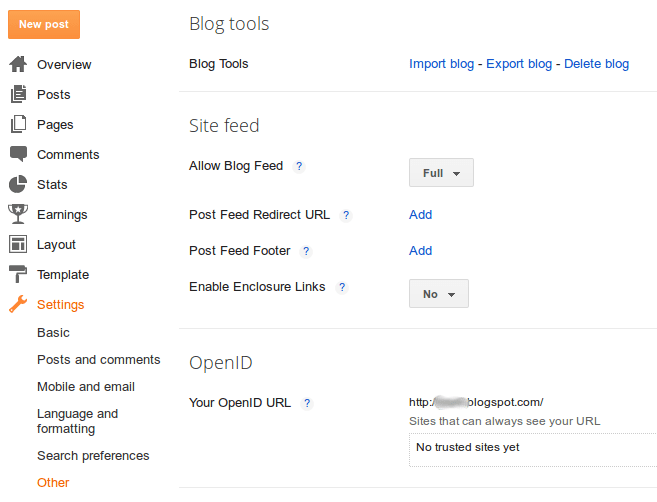
Take that file and import it into a new WordPress.com site. You’ll want to make sure that this blog is public (but not necessarily indexed by search engines) as our hosted WordPress installation will need to be able to pull media files from it, but we don’t want it to wind up on Google, as it’s only temporary. It might take a while to fully complete, but WordPress.com should bring in all your Posts, Comments, and Media just fine. Once you’re sure that it’s done, export the WordPress.com site through the “Tools” → “Export” menu, selecting “All Content.”
Importing WordPress.com’s export into a hosted WordPress site
Before we begin importing the content from WordPress.com, two things should be changed in the WordPress Importer plugin‘s wordpress-importer.php file, which can be done through the plugin editor.
Just so we know when the importer runs into issues, change IMPORT_DEBUG to true:
/** Display verbose errors */

define( 'IMPORT_DEBUG', true );
Then to make sure we get everything, find the line that starts with:
$post_exists = post_exists( $post['post_title'], ...
This was on line 539 for me. Comment it out using slashes:
//$post_exists = post_exists( $post['post_title'], ...
Then just below that line add:
$post_exists = false;
I did this because when WordPress.com imported images from Blogger, it gave them the same name as the post title, So if a post was called “Why Hello There!” and it had 5 pictures in it, all 5 pictures also had the title “Why Hello There!” This was preventing the importer from getting everything. Plus I already reset the installation, so there’s no content to duplicate or overwrite anyway. And I reasonably trust that I want to retrieve everything contained in the WordPress.com export file.
Run your import and everything should go smoothly. After you’ve verified you have everything in your new hosted WordPress installation, you can delete your WordPress.com site or make it private. You may also want to undo the WordPress Importer changes for future imports.



Hey, thanks for the detailed information. I'm half way through importing now but I have one question. I'm migrating my old posts from blogger to wordpress.org (which already contains quite a lot of newer posts). Just want to be very sure that when I do this import (Blogger > Wordpress.com > Wordpress.org), my newer posts in wordpress.org will still be there, right?
That should be fine... you might want to do an export of your wordpress.org site before starting to keep as a backup just incase things go wrong. WordPress uses the post date to order all of it's display, so there shouldn't be any issues with that.
I used the same method of migration, however it's possible to move content directly to wordpress.org. cms2cms makes it rather fast and involves more blog entities migration in comparison to the way you've described. you may check up how this tool works watching this video tutorial http://www.cms2cms.com/blog/a-must-watch-how-to-migrate-from-blogger-to-wordpress-in-5-steps-video/
Hi, I've been trying to export my blogspot blog, using the steps you described. But it doesn't download my blog and goes to feeds. So I don't get a document with my blog. Do you know what the problem might be? thanks, Nicole
I keep running into this error after attempting to import: PAGE NOT FOUND Sorry, but you are looking for something that isn't here. Ever see this before and know what might be the issue?
I would make sure your permalinks settings on your hosted WordPress site match that of WordPress.com - they use "Month and name."
If you have youtube embed videos, before importing WordPress.com’s export, you should edit the xml file with a text editor and replace the smartcode "[youtube " (ending space) with the smartcode "[youtube=" (no ending space). Then you should install the "Smart YouTube PRO" addon for it to work.
Thanks so much for all the step-by-step!! They were so much helpful!!!
Thanks for sharing your learnings - just did a blogger to WP import without a glitch!
darn doesn't seem to work for me. If I try importing after editing the import plugin it stalls out. If I import without editing the plugin it works but all media in posts still links to the wordpress.com site. The posts also seem to be holding onto the old link too - so it akes people back to the wordpress.com etmporary site. Any ideas? Thanks :)
Same for me. Images were imported into the Media area, but they are all unattached, and the post content points to my "temporary.wordpress.com" media. I want to be able to delete this temporary site, and even if I leave it be I surely don't want any of the media from my self-hosted WordPress site to be hosted there... Just looks tacky. Thoughts?
There are several options for your WordPress.com site. Setting it to private is one, and you can change that setting here: http://temporary.wordpress.com/wp-admin/options-reading.php You can also delete the site entirely: http://en.support.wordpress.com/delete-site/ but I DO NOT recommend that - you (or anyone) will never be able to reuse the name. That support page however has lots of alternatives to hide and/or remove content from your WordPress.com site.
Beautiful! Thanks for posting. Did a direct import from Blogger to a self-hosted Wordpress blog and it imported 200+ published posts as published and also my 300+ draft posts as PUBLISHED as well... also all dates were converted to the date of the import, rather than the date of actual post. Deleted all posts and categories and then followed your 2 step solution - worked perfectly! Everything has been imported exactly as it was in Blogger. Status, date, attachments all exactly as they should be. thanks again!
This sounds very nice but what if our Blogger export is over 15MB? I am working for a client to move a blogger site to wordpress and redesign etc. and the blogger export file is 75MB. Is there any way to get around this 15MB limit? Thanks!
You might try the option to authorizing the wordpress.com plugin to get everything from Blogger. A more straightforward option might be to contact WordPress.com support and ask them how to get around the limitation.
Hi want to know if it is possible and how to do the following I will pass all the blog content from blogguer to wp But I want to individualize each redirect as in: On Blogger: site.blogspot.com/2010/08/bad-nameee.html And I want it to redirect to wordpress: site.com/good-name.html I've been trying to find out how to do this but have no clew so far Can anyone help? Please?
You used to be able to add some javascript to automatically redirect from blogspot, but I don't think it's allowed anymore. Really the best you can do is make an announcement like this: http://jfoell.blogspot.com/
When you say export blogger to a new wordpress.com account - should we make a new one with a different email, and then export that into our hosted one? I'm so afraid of losing all my posts.
If you've already got a WordPress.com account, you can just sign in, go to "My Blogs" and click "Create a New Blog" - it will be separate from your any of your other WordPress.com blogs.
Hi Justin Great post and still valid, thank you! I followed all your steps and when importing the xml file into my self hosted wordpress site I got the following error on all the posts: "Remote server returned error response 403 Forbidden" Any suggestions? Thank you... Ben
Oops, saw now that the wordpress.com site can't be private... Thanx!
Your migration methods work pretty well except for one problem. Many of my client's blogger posts have embedded video links. When I bring them into my WordPress installation using the Blogger import plugin they disappear completely. I tried your method of using the WordPress site to import the blogger posts and then exporting to a native WordPress export file, then importing that file into my stand alone WordPress installation. Here's what happens: • The blogger files migrate to the WordPress site very well and the video embedded code comes in fine. • When I export the WordPress XML, file then import it into my new application it sort of comes over but it re-writes some of the html and it no longer works. For example: THIS CODE: [youtube http://www.youtube.com/watch?v=1RP2WFIqxcA] TURNS INTO THIS CODE: [youtube=http://www.youtube.com/watch?v=1RP2WFIqxcA] Can you tell me why it is doing this and if there is a way to fix it? Thank you.
See gazubo's comment here: https://9seeds.com/tech/converting-blogspot-blogger-to-hosted-wordpress/#comment-52752 There are also several search/replace plugins that you could use to change "[youtube=" to "[youtube "
Hey Scott! I used the Blogger Importer and had same problem with the youtube embeds. Images the appeared in content were pointing to my blogger website. The Cms2Cms tool helped me out and basically moved ALL of the content (including internal/external links, embeds, pages and images). Cost me $29, but I didn't have time to fiddle with the import/export stuff. I am sure this is one of the best investments I ever made. (This is not an advertisement, I am no affiliate). If you're interested, here's the link: https://9seeds.com/cms2cms
I have a feeling that this is a bad idea if your blog uses adfly. importing blogger to wordpress.com will replace all adfly links to some null link since adfly is banned in wordpress.com So, i guess ill just import blogger to a hosted wordpress and see how it goes.
Your article is so authentic. Thats what i love about it. My question is: After I create a new temporary.wordpress and import everything there, before moving to permanent.wordpress.org (self hosted), will my blogger website be still available for my visitors? I want to tweak everything before launching permanent.wordpress.org to my visitors permanently. Is that possible? Also would you be able to direct me to something that talks about 301 permanent redirection. Panks
I used the method in Step 5 on this post: http://underscorebleach.net/jotsheet/2006/05/move-blogger-to-wordpress It won't redirect to exactly the same article, but it will at least give notice. I don't think redirecting to the right article/URL is possible since Google disabled javascript customization on blogspot / blogger.
Did videos transfer over? And were posting dates preserved?
Posting dates are preserved. I assume videos will transfer fine, but I did not test it (pictures from the media library transferred fine). See above comments regarding using the youtube shortcode for videos.
Thank you for this article, it's very well written. The first part regarding downloading the blogger XML file and uploading it to Wordpress.com worked great. (surprisingly fast for 600+ images...) Unfortunately, I am having a problem in which the Wordpress.org importer is failing to import any of the images. The messages its reporting are Failed to import Media “filename of image" -I am using Wordpress 3.6 for this test, I will try upgrading to 3.6.1 in my next couple of trys... -The importer WILL import all of the posts, comments, etc if I do NOT check the "Import images" check box during the import -I CAN upload images using the media library Any advice as to what could be going wrong? Thanks, Brian
Brian, I would double-check that your WordPress.com blog isn't set to private. You can see the setting by going to the admin dashboard and navigating to Settings → Reading. Under the Site Visibility heading you'll want to at least select "Discourage search engines from indexing this site." The content from WordPress.com will be contained in the export file, but the media are all referenced by URL. So your hosted WordPress installation needs to be able to retrieve them (anonymously). After the import is complete, you can reset the WordPress.com site visibility back to private.
Thank you for this article, it’s very well written. The first part regarding downloading the blogger XML file and uploading it to WordPress.com worked great.
Cool.. nice trick, it's better than regular import.
Great post! Thanks for all kind of info to import a blog it is quite useful thanks sharing it.
A very helpful article for bloggers and wordpress users , thanks for sharing !!
Very useful information thanks.