• Stay in touch. Sign up for the 9seeds newsletter.
  • Converting Blogspot / Blogger to hosted WordPress

    First Try

    Migrating your Blogspot or Blogger weblog to a hosted WordPress installation should be easy.  But you may run into some problems along the way, so here are some quick ways to make it less painful.

    When I first attempted this, I used the Blogger Importer plugin found in the “Tools” → “Import” menu of a new WordPress installation.  It went OK.  The importer pulled in all of the posts and the comments, but there seemed to be some extra markup that made it’s way into the posts.  All of the post titles now started with “>”:

    >Why Hello There!

    Also, while images in the content seemed to be fine, none of the media was actually imported into WordPress, they were still being hosted on blogspot.com.

    Resetting the WordPress installation to start over

    So now WordPress has a bunch of content that I want to delete so that I can start over and hopefully get it right the next time.  For this I used WordPress Reset.  I was able to use it to remove the (bad) imported content and reset it back to a new installation.  It’s multi-site friendly and only restored the one site and left all the content from the parent and sibling sites alone – although I can’t vouch for what it would do if you ran it on the parent site of a network installation.

    A 2-Step Approach

    Now that I was back to square one it was time for a different approach.  After some reasearch, someone on the WordPress Forums mentioned using WordPress.com to do the Blogger import, then exporting from WordPress.com as a native WordPress export file (WXR / XML), and import that file into your new WordPress installation.

    Importing Blogspot / Blogger to WordPress.com

    So over at WordPress.com, everything is like a normal WordPress installation, except they have turned it up to 11.  They have powerful servers, and a dedicated staff that make amazing additions to the most popular free plugins – one of which is the Blogger import.  On WordPress.com you have an additional option to import a Blogger export file:

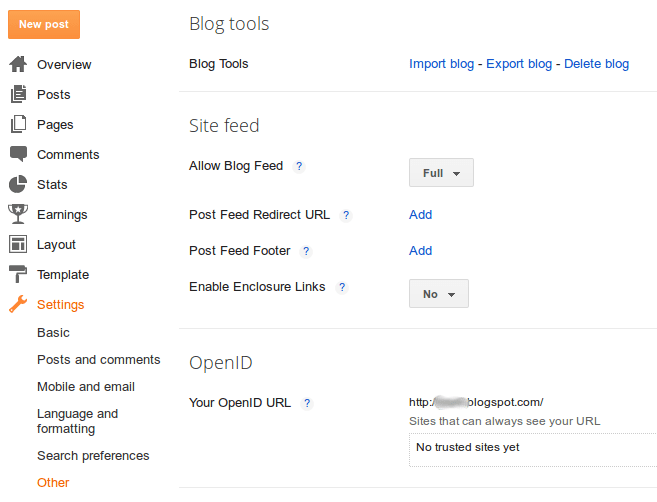
    Rather than authorizing the plugin to get everything from the site, we’ll export it to a file. Log into your Blogger account. When you’re logged in and viewing your blog there’s a “Design” link in the upper right menu bar, click that. Once you’re at the Blogger administration page click the “Settings” menu, and then “Other.” You will have an option under “Blog Tools” to “Export blog”:

    Take that file and import it into a new WordPress.com site. You’ll want to make sure that this blog is public (but not necessarily indexed by search engines) as our hosted WordPress installation will need to be able to pull media files from it, but we don’t want it to wind up on Google, as it’s only temporary. It might take a while to fully complete, but WordPress.com should bring in all your Posts, Comments, and Media just fine. Once you’re sure that it’s done, export the WordPress.com site through the “Tools” → “Export” menu, selecting “All Content.”

    Importing WordPress.com’s export into a hosted WordPress site

    Before we begin importing the content from WordPress.com, two things should be changed in the WordPress Importer plugin‘s wordpress-importer.php file, which can be done through the plugin editor.

    Just so we know when the importer runs into issues, change IMPORT_DEBUG to true:

    /** Display verbose errors */
    define( 'IMPORT_DEBUG', true );

    Then to make sure we get everything, find the line that starts with:

    $post_exists = post_exists( $post['post_title'], ...

    This was on line 539 for me.  Comment it out using slashes:

    //$post_exists = post_exists( $post['post_title'], ...

    Then just below that line add:

    $post_exists = false;

    I did this because when WordPress.com imported images from Blogger, it gave them the same name as the post title, So if a post was called “Why Hello There!” and it had 5 pictures in it, all 5 pictures also had the title “Why Hello There!” This was preventing the importer from getting everything. Plus I already reset the installation, so there’s no content to duplicate or overwrite anyway. And I reasonably trust that I want to retrieve everything contained in the WordPress.com export file.

    Run your import and everything should go smoothly. After you’ve verified you have everything in your new hosted WordPress installation, you can delete your WordPress.com site or make it private. You may also want to undo the WordPress Importer changes for future imports.

    Drupal to WordPress migration

    A client came to us this week with a problem; he had a Drupal site with over 1000 articles that he wanted to convert to WordPress. So we headed to Google for some help. There are several tutorials out there on how to migrate Drupal content to a WordPress site, but many of them are really outdated. After kicking the tires on a few, this post by Mike Smullin seemed to be the best jumping off point.

    Mike is right up front in his instructions with the fact that you’ll need to do a bit of tweaking to his set of instructions to get it to work for your setup. After a few failed attempts, we came up with an updated set of instructions. We’ve included the updated version along with notes about changes made.

    These instructions are a set of SQL statements. It assumes you have a database named WordPress using ‘wp_’ as the prefix and another database named Drupal.

    This should go without saying, but I’ll say it anyway; do not move forward without backing up your databases FIRST!

    Clear all existing WordPress content

    1
    2
    3
    4
    5
    6
    7
    
    TRUNCATE TABLE wordpress.wp_comments;
    TRUNCATE TABLE wordpress.wp_links;
    TRUNCATE TABLE wordpress.wp_postmeta;
    TRUNCATE TABLE wordpress.wp_posts;
    TRUNCATE TABLE wordpress.wp_term_relationships;
    TRUNCATE TABLE wordpress.wp_term_taxonomy;
    TRUNCATE TABLE wordpress.wp_terms;

    Create Categories

    1
    2
    3
    4
    5
    6
    
    INSERT INTO wordpress.wp_terms (term_id, `name`, slug, term_group)
    SELECT
     d.tid, d.name, REPLACE(LOWER(d.name), ' ', '_'), 0
    FROM drupal.term_data d
    INNER JOIN drupal.term_hierarchy h
     USING(tid);

    Add Taxonomies

    1
    2
    3
    4
    5
    6
    7
    8
    9
    
    INSERT INTO wordpress.wp_term_taxonomy (term_id, taxonomy, description, parent)
    SELECT
     d.tid `term_id`,
     'category' `taxonomy`,
     d.description `description`,
     h.parent `parent`
    FROM drupal.term_data d
    INNER JOIN drupal.term_hierarchy h
     USING(tid);

    Import posts/pages
    We added ‘article’ to the array on the last line to solve an issue with the way Drupal had categorized the posts.

    1
    2
    3
    4
    5
    6
    7
    8
    9
    10
    11
    12
    13
    14
    15
    16
    17
    
    INSERT INTO wordpress.wp_posts (id, post_date, post_content, post_title, post_excerpt, post_name, post_modified, post_type, `post_status`)
    SELECT DISTINCT
     n.nid `id`,
     FROM_UNIXTIME(n.created) `post_date`,
     r.body `post_content`,
     n.title `post_title`,
     r.teaser `post_excerpt`,
     IF(SUBSTR(a.dst, 11, 1) = '/', SUBSTR(a.dst, 12), a.dst) `post_name`,
     FROM_UNIXTIME(n.changed) `post_modified`,
     n.TYPE `post_type`,
     IF(n.STATUS = 1, 'publish', 'private') `post_status`
    FROM drupal.node n
    INNER JOIN drupal.node_revisions r
     USING(vid)
    LEFT OUTER JOIN drupal.url_alias a
     ON a.src = CONCAT('node/', n.nid)
    WHERE n.TYPE IN ('post', 'page', 'article');

    Turn articles in to posts
    This will turn the ‘articles’ from the previous step in to ‘posts’ in WordPress.

    1
    
    UPDATE wordpress.wp_posts SET post_type='post' WHERE post_type='article';

    Add post to category relationships

    1
    2
    
    INSERT INTO wordpress.wp_term_relationships (object_id, term_taxonomy_id)
    SELECT nid, tid FROM drupal.term_node;

    Update category count

    1
    2
    3
    4
    5
    
    UPDATE wordpress.wp_term_taxonomy tt
    SET `count` = (
     SELECT COUNT(tr.object_id)
     FROM wordpress.wp_term_relationships tr
     WHERE tr.term_taxonomy_id = tt.term_taxonomy_id);

    Import comments

    1
    2
    
    INSERT INTO wordpress.wp_comments (comment_post_ID, comment_date, comment_content, comment_parent, comment_author, comment_author_email, comment_author_url, comment_approved)
    SELECT nid, FROM_UNIXTIME(TIMESTAMP), comment, thread, name, mail, homepage, STATUS FROM drupal.comments;

    Update comment counts
    After fighting with the original syntax, I added the ‘use wordpress’ step to get around it.

    1
    2
    
    USE wordpress;
    UPDATE `wp_posts` SET `comment_count` = (SELECT COUNT(`comment_post_id`) FROM `wp_comments` WHERE `wp_posts`.`id` = `wp_comments`.`comment_post_id`);

    Fix breaks in post content

    1
    
    UPDATE wordpress.wp_posts SET post_content = REPLACE(post_content, '', '');

    Fix images in post content

    1
    
    UPDATE wordpress.wp_posts SET post_content = REPLACE(post_content, '"/files/', '"/wp-content/uploads/');

    If your posts have any images you’ll need to move them from your ./files directory to the ./wp-content/uploads directory. The final step above should take care of fixing any image calls in your pages and posts, but you still may need to manually update them if you are having issues.

    Download a copy/paste friendly version of the Drupal to WordPress instructions here.

    if you have any questions, leave us a comment below.